
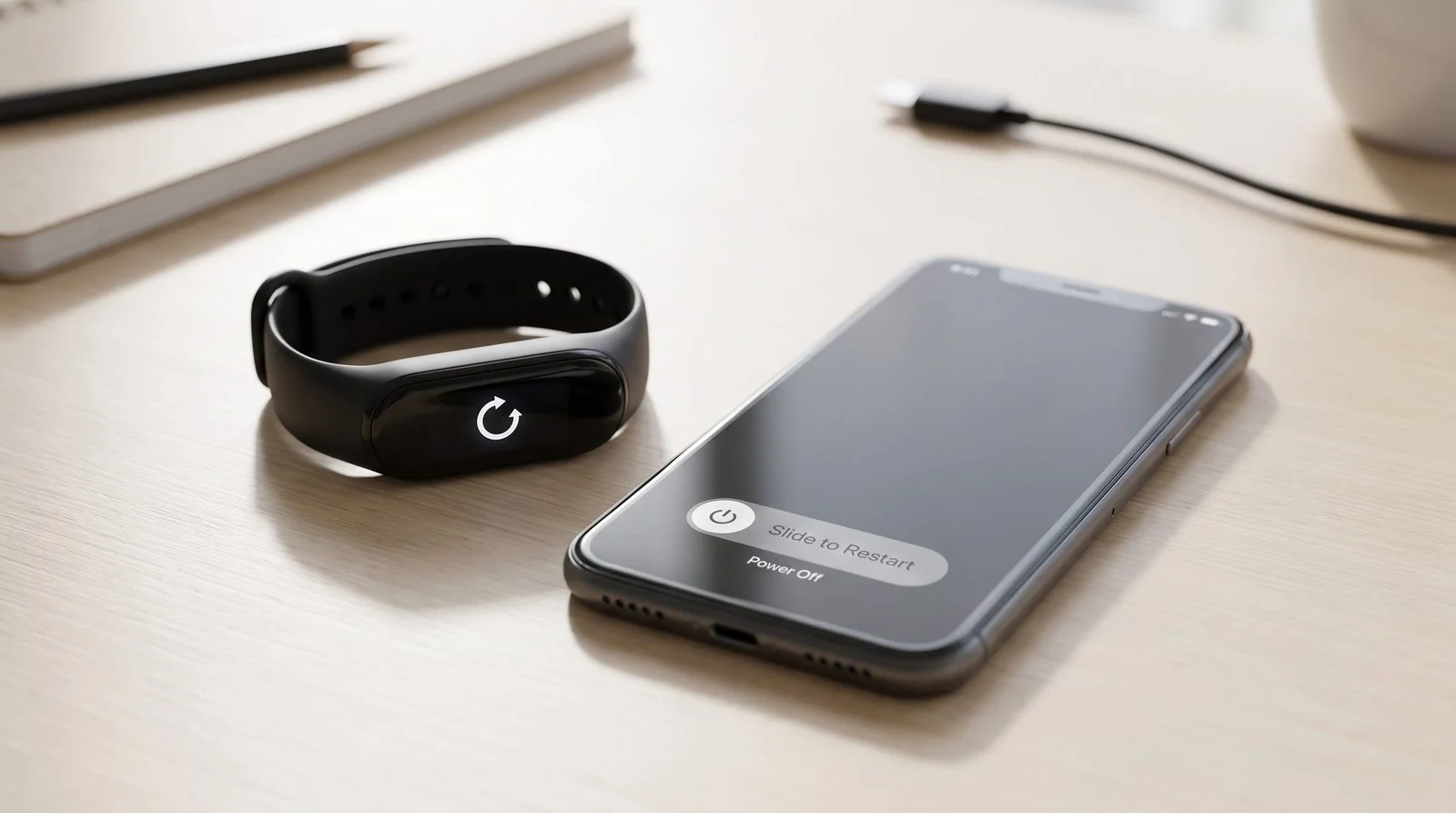
If your Fitbit is not syncing with your phone, the problem is usually related to Bluetooth, the phone’s internet connection, the Google Health app, another nearby device, or a stuck connection between your Fitbit and phone.
The good news is that you usually do not need to reset your Fitbit immediately.

Start with the quick fixes below and work through the steps in order. Most syncing problems can be resolved by refreshing the connection, restarting the devices, or reconnecting the Fitbit properly.
Quick Answer: Why Is My Fitbit Not Syncing?
A Fitbit may stop syncing because:
- Bluetooth is disabled or temporarily stuck.
- Your phone does not have an internet connection.
- Your Fitbit is too far from your phone.
- Another phone or tablet is trying to connect to the Fitbit.
- The Google Health app needs to be restarted or updated.
- Your Fitbit needs to be restarted.
- Your phone’s Bluetooth connection needs to be refreshed.
- The Fitbit is still associated with an old phone.
- Another Fitbit device is interfering with the connection.
- The app or device software needs to be updated.
Fitbit devices use Bluetooth Low Energy to sync with compatible phones and tablets. Current Google Health documentation says Fitbit data can automatically sync when the device is nearby, while a manual sync can also be initiated from the Google Health app.
1. Bring Your Fitbit Close to Your Phone
Start with the simplest possibility.
Keep your Fitbit close to the phone you’re using for syncing. Bluetooth connections can become unreliable when the devices are separated by distance or obstacles.
Put the Fitbit next to your phone and open the Google Health app.
Then try syncing again.
If the Fitbit immediately starts syncing, the problem was likely a temporary Bluetooth connection issue rather than a problem with your account or device.
2. Check Bluetooth on Your Phone
Bluetooth is essential for syncing a Fitbit tracker or watch with your phone.
Open your phone’s Bluetooth settings and make sure Bluetooth is turned on.
If Bluetooth is already enabled, refresh the connection:
- Turn Bluetooth off.
- Wait several seconds.
- Turn Bluetooth back on.
- Open the Google Health app.
- Try syncing your Fitbit again.
Google’s current troubleshooting instructions specifically recommend resetting Bluetooth when a Fitbit will not sync.
This simple step can fix a connection that appears active but is actually stuck.
3. Make Sure Your Phone Has Internet Access
Bluetooth connects the Fitbit to your phone, but the app also needs internet access to synchronize your information with your account.
Check that your phone is connected to:
- Wi-Fi, or
- Mobile data.
Open another website or app to confirm that your internet connection is working.
Then reopen Google Health and try syncing again.
Google’s troubleshooting documentation specifically notes that the Google Health app needs internet access to sync Fitbit data.
4. Manually Sync Your Fitbit
Sometimes automatic syncing simply hasn’t happened yet.
With your Fitbit close to your phone:
- Open the Google Health app.
- Open the device connection area.
- Select your Fitbit.
- Pull down on the screen to initiate a manual sync.
- Wait for the synchronization process to complete.
Current Google Health documentation also provides a Sync option through the device connection area.
If the manual sync works, your Fitbit itself may be fine. The problem may simply have been that automatic syncing was temporarily delayed.
5. Restart Your Fitbit
If Bluetooth and internet access are working but the Fitbit still refuses to sync, restart the device.
Restarting is different from performing a factory reset.
A restart simply reboots the device and does not normally erase your stored fitness information.
Google’s current troubleshooting sequence recommends restarting the Fitbit and then trying to sync again.
The exact restart procedure depends on your Fitbit model, so use the instructions specific to your device rather than applying a button combination from another model.
6. Restart Your Phone
Your phone can also develop a temporary Bluetooth or app connection problem.
Restart the phone completely.
After it turns back on:
- Make sure Bluetooth is enabled.
- Make sure Wi-Fi or mobile data is working.
- Open Google Health.
- Keep the Fitbit nearby.
- Try a manual sync.
This is especially worth trying if the Fitbit was syncing normally earlier but suddenly stopped.
7. Make Sure Another Phone Isn’t Connecting to Your Fitbit
This is one of the more easily overlooked causes of syncing problems.
If you’ve previously connected your Fitbit to another phone, tablet, or spare device, that device may still be trying to communicate with the tracker.
Google’s current troubleshooting guidance says a Fitbit can only sync with one device at a time. It recommends checking other nearby phones and tablets and removing the Fitbit’s Bluetooth connection from them when necessary.
Check any old phone or tablet that:
- Uses the same Fitbit/Google Health account.
- Has Bluetooth enabled.
- Has previously been paired with the Fitbit.
- Is physically near your Fitbit.

If necessary, forget the Fitbit connection on the other device before trying again.
8. Check for App and Phone Updates
An outdated app or phone operating system can create compatibility and connection problems.
Check whether:
- Google Health has an available update.
- Your phone has a pending operating-system update.
- Your Fitbit has a firmware update available.
Do not assume that an older version will continue working perfectly just because the Fitbit worked previously.
Keeping the app, phone, and Fitbit software current also reduces the chance that a connection problem is caused by an outdated component.
9. Reconnect the Bluetooth Connection
If your phone recognizes the Fitbit but synchronization still refuses to work, you may need to remove the existing Bluetooth connection and establish it again.
On your phone:
- Open Bluetooth settings.
- Find the Fitbit.
- Select the option to forget or remove the device.
- Return to Google Health.
- Set up or reconnect the Fitbit.
- Try syncing again.
Do not repeatedly remove and re-add the Fitbit as your first troubleshooting step. Try the simpler Bluetooth reset, manual sync, and restart steps first.
Google recommends removing the existing Bluetooth connection as part of its deeper troubleshooting sequence when normal syncing steps don’t resolve the problem.
10. Remove Other Fitbit Devices From the Phone
If you have more than one Fitbit tracker or watch, check the devices connected to your phone.
An old Fitbit that is still connected can complicate troubleshooting.
Google’s Android troubleshooting guidance recommends removing other Fitbit devices from the Google Health account and the phone’s Bluetooth device list when syncing problems persist.
This is particularly useful if you recently upgraded from one Fitbit to another.
For example, if you moved from an older Charge model to a newer tracker but still have the old device listed, clean up the unused connection before attempting another sync.
11. Reinstall the Google Health App
If you’ve tried the connection and hardware troubleshooting steps and the Fitbit still will not sync, reinstalling the app can be a useful final software troubleshooting step.
Before doing this, make sure your phone meets the current app requirements and that you know which account you use for your Fitbit data.
Then:
- Remove the Google Health app.
- Reinstall it from your phone’s official app store.
- Sign back into your account.
- Set up or reconnect your Fitbit.
- Attempt a manual sync.
Google’s current Android troubleshooting instructions include reinstalling the Google Health app as part of the deeper troubleshooting process.
12. Contact Support If Your Fitbit Still Won’t Sync
If you’ve worked through the troubleshooting process and your Fitbit still refuses to synchronize, the problem may be more specific to the device, account, software, or connection.
At this point, avoid repeatedly factory-resetting the Fitbit.
Instead, contact Google/Fitbit support and explain:
- Your Fitbit model.
- Your phone model.
- Your phone operating system.
- When syncing stopped working.
- Whether Bluetooth detects the Fitbit.
- Whether manual syncing works.
- Which troubleshooting steps you’ve already completed.
This information makes it easier for support to identify the problem without making you repeat basic troubleshooting.
Fitbit Syncing Problems After Switching Phones
A phone upgrade can create syncing problems because the Fitbit may still be associated with the old phone.
If you recently changed phones, check both devices.
On the old phone, remove the Fitbit’s Bluetooth connection if it is still paired.
On the new phone:
- Turn Bluetooth on.
- Install or open Google Health.
- Sign into the correct account.
- Keep the Fitbit nearby.
- Follow the device connection/setup process.
- Attempt a manual sync.
Google specifically recommends checking whether the Fitbit is still paired with another nearby phone or tablet when synchronization fails.
Fitbit Is Connected but Data Is Missing
Sometimes the problem isn’t that the Fitbit cannot connect at all.
Instead, the Fitbit may appear connected while some recent information is missing from the phone.
First, try a manual sync.
Then check when the device last synchronized. Google Health provides information about the last sync time in the device connection area.
If the last-sync time is recent but a particular metric is missing, the issue may not be the Bluetooth connection itself.
For example, different Fitbit features can have different requirements, permissions, or synchronization behavior.

Should You Factory Reset a Fitbit That Won’t Sync?
Usually, no—not as your first solution.
A factory reset is much more drastic than restarting the device or refreshing Bluetooth.
Before considering a reset, work through:
- Bluetooth reset
- Internet connection check
- Manual sync
- Fitbit restart
- Phone restart
- Checking other connected phones
- Removing conflicting Fitbit devices
- Reconnecting the Bluetooth connection
- Reinstalling the app
A factory reset should be considered only when appropriate for the specific device and troubleshooting situation.
How to Tell Where the Problem Is
A useful way to diagnose the problem is to look at which part of the connection is failing.
| What you see | Most likely area to check |
|---|---|
| Fitbit is completely invisible to phone | Bluetooth/pairing |
| Fitbit appears connected but won’t sync | App/Bluetooth connection |
| Manual sync works but automatic sync doesn’t | Background/app connection |
| Fitbit stopped syncing after phone upgrade | Old-device pairing |
| Several Fitbits are connected | Device conflict |
| App crashes during syncing | App/software |
| Fitbit shows a sync-related error | Device/software connection |
| Nothing works after reinstalling | Deeper device/account issue |
This isn’t a diagnosis of the hardware; it’s a practical troubleshooting sequence to help narrow down the problem.
How Often Should a Fitbit Sync?
Fitbit devices can automatically synchronize data when they’re near the phone and connected through the appropriate connection.
Google says Fitbit devices automatically sync with Google Health throughout the day, and opening the app while the device is nearby can trigger synchronization.
You therefore shouldn’t need to manually sync after every workout.
If you notice that your Fitbit hasn’t synchronized for an unusually long time, checking the last-sync information and performing a manual sync is a good first step.
Final Verdict
If your Fitbit is not syncing, don’t immediately assume that the tracker is broken.
Start with the basics: keep the Fitbit close to your phone, check Bluetooth, confirm internet access, and perform a manual sync. If that doesn’t work, restart both devices and check whether another phone or tablet is still connected.
For persistent problems, remove conflicting Bluetooth connections, reconnect the Fitbit, and consider reinstalling the Google Health app.
The most important thing is to troubleshoot in stages rather than jumping straight to a factory reset.
With the right sequence, many Fitbit syncing problems can be resolved without losing your device settings or fitness history.
Frequently Asked Questions
Why is my Fitbit not syncing with my phone?
The most common causes include Bluetooth problems, lack of internet access, another nearby phone being connected, an outdated app, or a temporary connection problem. Start by refreshing Bluetooth and manually syncing the device.
How do I force my Fitbit to sync?
Open Google Health with your Fitbit nearby and use the device’s manual sync option. You can also pull down on the relevant screen to initiate synchronization.
Should Bluetooth be on for Fitbit to sync?
Yes. Fitbit trackers and watches use Bluetooth Low Energy to communicate with compatible phones and tablets.
Why did my Fitbit stop syncing after I got a new phone?
Your Fitbit may still be connected to the old phone. Check the old device’s Bluetooth settings and remove the Fitbit connection before setting it up on the new phone.
Will restarting my Fitbit delete my data?
A normal restart is not the same as a factory reset. Restarting reboots the device and is part of Google’s recommended troubleshooting process for syncing problems.
What should I do if my Fitbit is connected but not syncing?
Try a manual sync first. If that fails, reset Bluetooth, restart the Fitbit and phone, and check whether another phone or tablet is connected to the device.
Should I uninstall the Google Health app?
Not immediately. Reinstalling the app is better treated as a later troubleshooting step after checking Bluetooth, internet access, device connections, and restarting the devices. Google’s current troubleshooting guidance includes app reinstallation for persistent problems.
When should I contact Fitbit support?
Contact support if the Fitbit still won’t sync after you’ve completed the recommended connection, restart, pairing, and app troubleshooting steps.

Conclusion
A Fitbit that won’t sync is frustrating, but the problem is often fixable.
Start with Bluetooth, internet access, and a manual sync. Then restart your Fitbit and phone. If you’ve recently changed phones or use multiple Fitbit devices, check for conflicting connections.
Only move to deeper troubleshooting—such as removing the Bluetooth pairing or reinstalling Google Health—after the simpler solutions fail.